
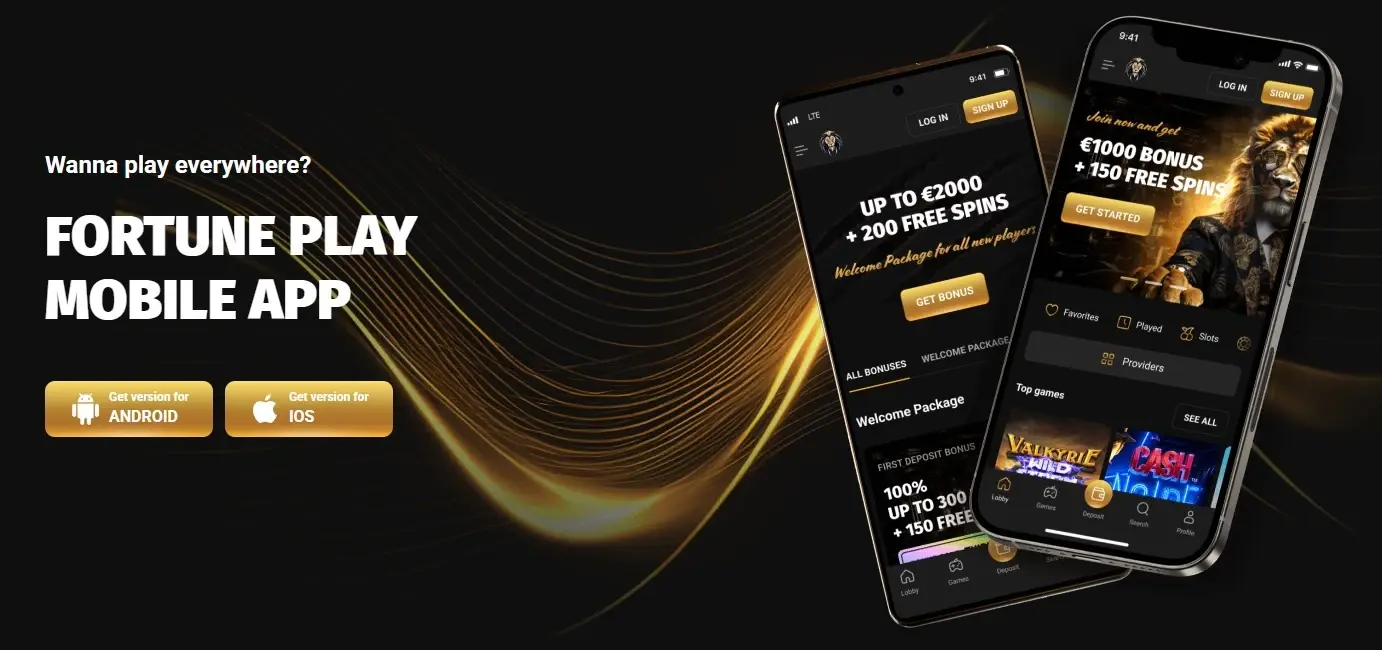
Fortune Play works on mobile through its website and provides official add-to-home-screen instructions for both Android and iPhone. The important detail is that Fortune Play describes this installation flow as a web app: Android users open the homepage in a browser, use the browser menu and choose “Add to the Home Screen”, while iPhone users open fortuneplay.com in Safari, use Share and choose “Add to Home Screen”. That is different from verifying a native App Store or Google Play download. For Australian readers, the safest description is therefore a browser-installed web app or PWA-style experience, not an assumed native store app. The mobile interface does not alter game-provider restrictions or Australia’s regulatory position.
Is there a Fortune Play app for Australia?
There is an official Fortune Play mobile installation page, and it gives separate instructions for Android and iPhone. The page repeatedly calls the product a web app and directs users to add the website to the home screen. That is the verified delivery method.
This distinction matters because “app” can mean several different things. A native app is downloaded from an app marketplace and installed as a packaged application. A browser-installed web app starts from the website and can create a home-screen shortcut or app-like launch point. Fortune Play’s verified instructions fit the second model.
For a user, the result can still feel app-like because there is a home-screen icon and a direct launch path. That app-like experience should not be confused with a verified native iOS or Android store listing. Unless a current store listing is separately verified, the accurate wording is web app, browser installation or add-to-home-screen experience.
How to install Fortune Play on Android
Fortune Play’s official Android instructions use the browser rather than an app marketplace. The published flow is:
- Open the Fortune Play homepage on the Android device.
- Tap the browser’s three-dot menu.
- Select “Add to the Home Screen” from the menu.
- Confirm the selection with the install action shown by the browser.
The exact wording or position of browser controls can vary by browser version and device, but the operator’s instruction is clearly a home-screen web-app flow. You are not being told to sideload an APK, disable device security or install software from an unknown file. This guide does not recommend those workarounds.
After installation, treat the icon as a convenient route back to the same service rather than as evidence of a different product. Account rules, game availability and payment conditions remain tied to the Fortune Play service. A home-screen icon does not create a new licence, a separate payment system or a different set of Australian consumer protections.
How to add Fortune Play to an iPhone home screen
Fortune Play’s iPhone instructions are also browser based. The official page tells iPhone users to:
- Open fortuneplay.com in Safari.
- Tap the Share control in Safari’s navigation interface.
- Choose “Add to Home Screen”.
- Confirm by tapping “Add”.
This is a standard web-app style installation path. It avoids the misleading impression that the user must search an app marketplace for a verified Fortune Play listing. A native app should only be treated as official when a current store listing can be confirmed.
The practical advantage of the home-screen route is convenience: the site can be launched directly without typing or searching for the URL each time. The limitation is that the experience still depends on the web service, browser technologies and the availability of the operator’s site in the user’s environment.
What carries over from desktop to mobile
The mobile product should be understood as another access point to the same Fortune Play account environment, not a separate casino. The verified game offering includes slots, live casino and sportsbook products. For the catalogue itself, see the game library guide, which explains why provider-level restrictions matter for Australia.
The same principle applies to the account. Registration and identity checks belong to the account rather than to a particular screen size. If you create or use an account from mobile, the relevant registration and verification requirements remain account-level conditions. Our account registration guide covers those checks without turning this mobile page into a duplicate KYC article.
Payments are also part of the same account ecosystem. A mobile interface can make the cashier easier to reach, but it does not change the underlying method rules, minimums, verification requirements or withdrawal review process. If payment details are central to your decision, use the dedicated payment pages rather than assuming that a mobile icon changes the cashier.
Why the web-app distinction is useful before you sign in
The key distinction is what Fortune Play means by “mobile app”. The operator’s install page directs both Android and iPhone users through browser controls, which affects how installation and updates work and how the software should be assessed.
With a browser-installed web app, the starting point is the official website. That makes URL checking important. Use the operator’s current site address rather than a file or installer obtained from a third-party download page. This guide does not provide or endorse APK files, mirror downloads or unofficial packages.
The web-app model also means that a review should be careful with claims such as “download from Google Play” or “available in the App Store”. Those phrases imply a store-distributed native application and an additional distribution channel. The current verified Fortune Play instructions do not require either store.
Mobile games and provider restrictions in Australia
Fortune Play’s mobile access does not override the supplier rules that apply to its game library. Slots and live casino are verified categories, but the current Terms specifically name Australia in restrictions for NetEnt and Amatic. A title that is unavailable because of a provider rule does not become available merely because the user switches from desktop to phone.
This matters when testing the mobile catalogue. If a game shown in an international review is missing, the first question should be whether the supplier or title has a geographic restriction. Do not treat a missing game as proof that the mobile site is broken. Equally, do not use technical workarounds to force access to a geographically restricted title. Fortune Play’s Terms prohibit using VPNs to bypass geographic restrictions.
The mobile games discussion on the games page provides the category-level context. The main point here is continuity: mobile access changes the interface and launch method, not the country restrictions attached to specific providers.
What to check before using Fortune Play on a phone
- Confirm the official site address. Start from Fortune Play’s current website rather than an unofficial download page.
- Recognise the installation model. The verified Android and iPhone flow is add-to-home-screen web app installation.
- Do not assume a native store app. A home-screen icon can look app-like without being a separate App Store or Google Play package.
- Recheck the game you want. Provider restrictions can still apply on mobile, including Australia-specific restrictions stated in the current terms.
- Keep account verification in mind. Mobile access does not remove registration or identity requirements.
- Keep payment rules separate. The same account and cashier conditions apply regardless of screen size.
- Do not use VPN bypass instructions. This guide does not provide them, and Fortune Play’s own terms prohibit bypassing geographic restrictions.
- Consider the Australian regulatory context. Mobile convenience does not imply Australian licensing or local consumer-protection coverage.
Australian regulatory context still applies on mobile
Fortune Play’s Australian-facing locale and mobile install page are operational features. They do not prove that the service is licensed in Australia. ACMA included Fortune Play in a website-blocking action announced on 13 February 2026 after investigations found the listed services were operating in breach of the Interactive Gambling Act 2001.
That point is relevant to mobile because a home-screen icon can make a service feel more like a conventional local app. The installation method does not change the underlying operator or the regulatory status of the service. Readers who want the legal and licensing analysis should use the regulatory status page rather than infer authorisation from the existence of a mobile interface.
This guide also avoids circumvention advice. If a service or game is blocked or restricted in the user’s environment, the appropriate response is to respect that restriction. We do not provide VPN setup, alternate-domain discovery or other instructions designed to evade blocking.
Mobile web app versus native app: what changes for users
| Question | Fortune Play verified position | Why it matters |
|---|---|---|
| How is it installed on Android? | Browser menu, then Add to the Home Screen and confirm install | No native store listing is needed for the verified flow. |
| How is it installed on iPhone? | Safari Share menu, then Add to Home Screen and confirm | The official instructions are browser based. |
| Is it verified as a native App Store app? | Not verified in the current sources | Do not describe it as a native iOS app without separate evidence. |
| Is it verified as a native Google Play app? | Not verified in the current sources | Do not send users searching for an unverified store listing. |
| Do game restrictions change on mobile? | No separate exception is verified | Provider and country restrictions remain relevant. |
The available evidence supports browser-based installation rather than a confirmed app-store download. That distinction matters because a website added to a home screen is not the same as a native software package.
Fortune Play mobile access questions
Does Fortune Play work on Android?
Yes. Fortune Play publishes official Android web-app installation instructions using the browser menu and “Add to the Home Screen” flow.
Does Fortune Play work on iPhone?
Yes. Fortune Play tells iPhone users to open the site in Safari, tap Share, choose “Add to Home Screen” and confirm the addition.
Is Fortune Play a native App Store app?
The available evidence supports a browser-installed web app, not a confirmed native App Store listing.
Is there a Fortune Play APK?
The verified official installation flow does not require an APK. This guide does not recommend third-party APK files or sideloading.
Are all Fortune Play games available on mobile in Australia?
Slots and live casino are available categories, but provider restrictions still matter. Fortune Play’s current Terms name Australia in restrictions for NetEnt and Amatic.
Can I use a VPN if a game or site is restricted?
This guide does not provide bypass instructions. Fortune Play’s current Terms prohibit VPN use to circumvent geographic restrictions.
Current mobile access references
For the broader brand assessment, return to the Fortune Play review.
Fortune Play’s current Australian install-app page gives separate add-to-home-screen instructions for Android and iPhone. Game continuity and provider restrictions are covered by the current Fortune Play Terms. Australian regulatory context is documented in ACMA’s 13 February 2026 blocking notice.